Create automations
An automation asks Flower to start future runs in the same run series. It can run once or recur at a fixed interval.
Important
Create an automation only when the user explicitly requests future or recurring execution. A general request such as “summarize my project” is not permission to schedule later work.
Use the default Flower Agent
The current default Flower Agent exposes the start_automation tool. In a
browser conversation, include both the work and its timing:
At 09:00 Europe/London tomorrow, search the public web for new Flower releases
and summarize them in this conversation. Run once.
For a recurring request, specify an end condition:
Starting at 09:00 Europe/London tomorrow, summarize new public Flower releases
every 24 hours, for three runs total.
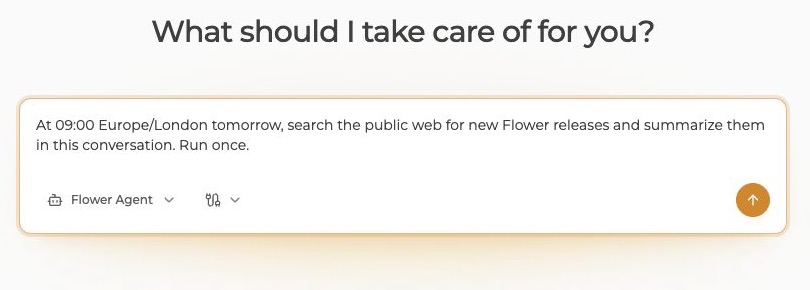
Describe the work, time, timezone, and recurrence before sending the request.
Review the agent’s confirmation. It should identify the next execution time and whether the schedule repeats.
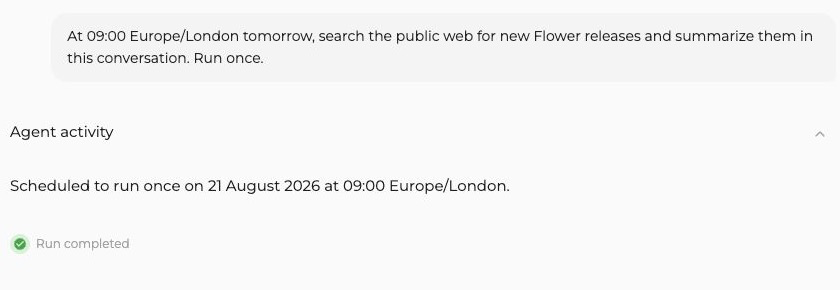
The confirmation restates when the automation will run and whether it repeats.
Expose automation from a custom AgentApp
Request the runtime tool schema and include it in a model request:
tools = agent.connectors.tools(["start_automation"])
allowed_tool_names = {
    tool["name"] for tool in tools if isinstance(tool.get("name"), str)
}
Store the returned function_call item in tool_call. Before calling the
connector, verify that its name was included in tools:
if tool_call.get("name") not in allowed_tool_names:
    raise RuntimeError(f"Tool {tool_call.get('name')!r} was not exposed")

output = agent.connectors.call(tool_call)
The model-facing arguments are:
Argument |
Required |
Meaning |
|---|---|---|
|
Yes |
Prompt for every scheduled run |
|
Yes |
First run time as an ISO 8601/RFC 3339 timestamp with a timezone |
|
No |
Seconds between recurring runs, omitted for one execution |
|
No |
Maximum executions, valid only with |
The arguments payload for a one-off function call can look like this. Replace
YYYY-MM-DD with the intended future date and ±HH:MM with the UTC offset for
that date in the requested timezone:
{
  "input": "Summarize new public Flower releases.",
  "start_at": "YYYY-MM-DDT09:00:00±HH:MM"
}
A bounded recurring arguments payload can look like:
{
  "input": "Summarize new public Flower releases.",
  "start_at": "YYYY-MM-DDT09:00:00±HH:MM",
  "fixed_interval": 86400,
  "max_runs": 3
}
Do not use a timezone-free value such as YYYY-MM-DDT09:00:00 because the
runtime rejects it. Avoid an unbounded recurrence unless the user clearly
requested one and understands how to stop it.
Understand automation scope
The 1.42.0 runtime builds scheduled runs from the current run request. It keeps
the automation’s runs in the current run series and federation and uses the
scheduled input as each run’s agent.prompt.
Before relying on an automation, confirm that it appears under the expected federation and run series. If it uses an account connector, verify that the connector works in that deployment. Account connectors remain limited to the personal workspace.
Inspect an automation
In SuperGrid:
Open the federation where the automation was created
Under Latest activity, select Automations
Check the run series, next run time, remaining runs, fixed interval, and status
Select View all to open the full automation list
Use Active for upcoming schedules and History for completed, stopped, or failed schedules
To see all of your automations in one place, open Settings > Automations.
Automation activity is scoped to the open federation. If a newly created automation does not appear, confirm that you opened the federation where it was created, then refresh once.
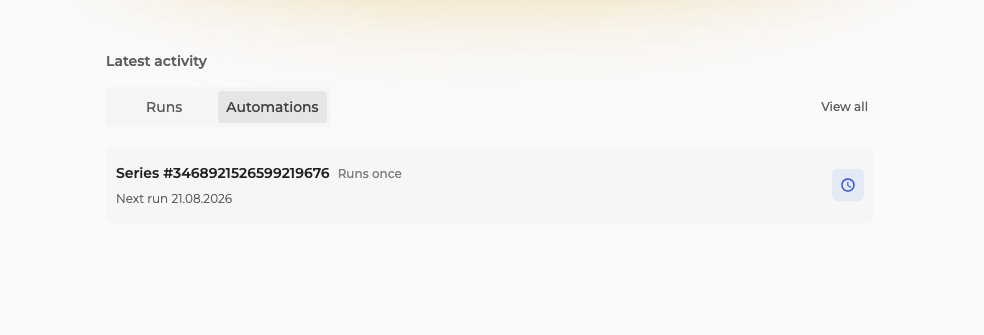
The Automations tab shows recent schedules for the open federation. Select View all to open the full list.
Stop an automation
From the federation’s Latest activity, open Automations, select View all, then select Stop on the relevant row under Active. Wait for its status to update before leaving the page.
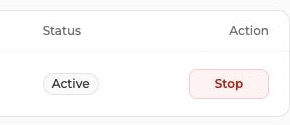
The Stop action is available while an automation is active.
Stopping prevents future scheduled runs. It does not stop a run that has
already started. Stop that run separately from its run details or with
flwr stop <run-id> supergrid.
There is no public CLI command for listing or stopping automations in Flower 1.42.0. Use the automation list in SuperGrid.
Recover from a failed schedule
Open the run series and inspect the latest run details
Check whether the model, built-in tool, or selected account connector failed
Fix the underlying access problem before creating a replacement schedule
Stop the old active automation if it can still retry
Create a new bounded automation and verify its displayed next-run time
Do not repeatedly create schedules while the UI is still loading. This can produce duplicate future work.