Chat in your terminal
Use Flower Chat to run AgentApps from your terminal. In this tutorial, you’ll sign in to SuperGrid, stream a response, switch federations and agents, and continue an earlier conversation.
Prefer the browser? Start with Chat in your browser.
Note
This tutorial targets Flower 1.42.0. Flower Agent and flwr chat are
experimental and may change between releases.
Prerequisites
You’ll need:
Python 3.11 or newer
a Flower account with Flower Agent access
a terminal that can open the browser-based login flow
You don’t need to provide model credentials for a SuperGrid run.
Check the Flower version
Use uvx to run the documented version in an isolated environment:
$ uvx --from flwr==1.42.0 flwr --version
flwr, version 1.42.0
Running an explicit version keeps every command in this tutorial on the same CLI. If the package isn’t available, follow the package or installation instructions for your Flower environment.
Configure and log in to SuperGrid
Flower creates ~/.flwr/config.toml the first time a CLI command needs it. The
default file includes this connection:
[superlink.supergrid]
address = "api.flower.ai"
If you maintain a custom file, ensure that section exists. Then log in:
$ uvx --from flwr==1.42.0 flwr login supergrid
Open the printed authentication link and complete sign-in. The CLI stores the resulting account credentials for later SuperGrid commands.
Start a chat
$ uvx --from flwr==1.42.0 flwr chat
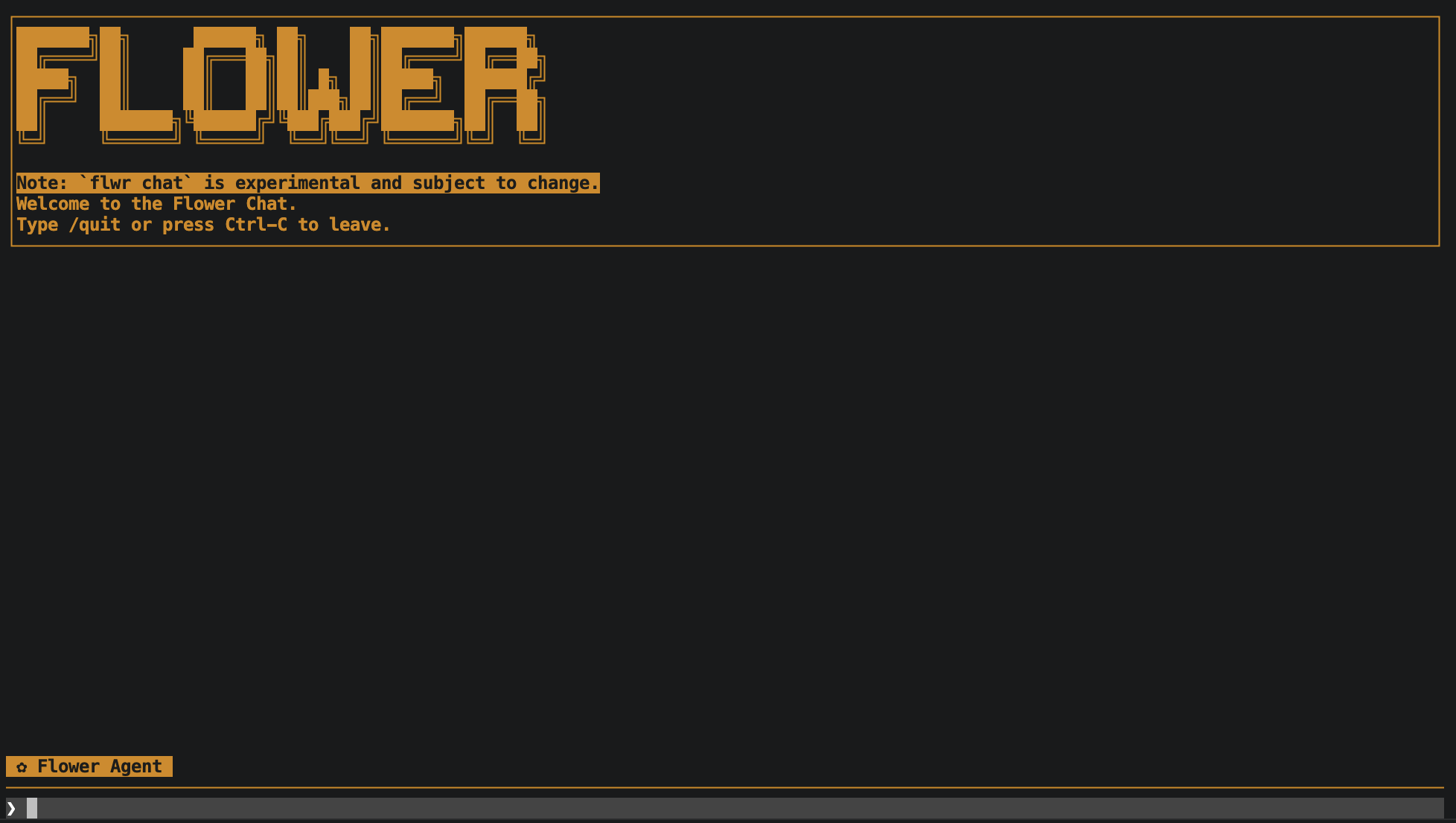
Flower Chat shows the selected agent above the prompt.
Flower verifies your stored login before opening the full-screen interface. At
startup, it selects your @<account>/personal federation. At the ❯ prompt,
ask:
Explain Flower Agent in one sentence.
The selected AgentApp starts a SuperGrid run. Its response, reasoning summary, and supported tool activity can stream into the transcript. Completed responses render as Markdown. When the run finishes, the prompt becomes available again.
If the interface does not open, follow Troubleshoot AgentApp runs before changing your project or account connectors.
Continue the conversation
Ask a follow-up that depends on the previous response:
Rewrite that explanation for a ten-year-old.
Flower keeps both runs in the same run series. The default Flower Agent replays the stored messages, so it can use the earlier answer. Custom AgentApps need to implement that behavior themselves; a run series doesn’t automatically give the model access to earlier messages.
Select another agent
Type @ at the start of an empty prompt. The completion menu lists agents
available in the active federation. Select one, add a request, and press
Enter:
@<publisher>/<agent> Describe what you can help me with.
Only a leading app spec selects an agent. After a successful selection, the label above the prompt changes. Selecting a different agent starts a new run series, so context from the previous agent is not mixed into the new one.
If no agent appears, verify the current federation and account entitlement in Use agents and federations.
Switch federations
Enter /federation to open the federation completion menu. Select a federation
visible to your account, or type its full name:
/federation @<account>/<federation-name>
Flower clears the current transcript, selects the default Flower Agent, and starts a new conversation in that federation. Agent completion then lists the agents assigned to the new federation.
Use chat commands
Type / to open the command menu:
/helplists available commands/newmakes the next message start a new run series/federationselects a federation and starts a new conversation there/historyshows conversations from the active federation/loadbuilds and selects an AgentApp from a local project directory/quitleaves Flower Chat
After entering /history, use the arrow keys to select a conversation, press
Enter to continue it, or press Esc to close the list. Flower
restores its user and assistant messages in the transcript and sends the next
message in the selected run series.
You can also press Ctrl+C:
during a run, it requests the run to stop
while viewing history, it closes the history list
with a draft, it clears the prompt
from an empty idle prompt, it exits
What happened
Each submitted message started one AgentApp run. SuperGrid supplied:
an OpenAI-compatible endpoint for model requests
an
AgentSessionfor the prompt, connector calls, and frontend-visible eventsa Flower
Contextcontaining run configuration and persistent series statethe selected AgentApp, resolved from its app spec or FAB hash
a federation in which the run and its series are stored
Read Use agents and federations for the full mental model.
Next steps
Tip
If you get stuck, join the Flower community on Flower Discuss or Flower Slack. Include safe run identifiers, but never include credentials or provider tokens.